How to Access Office 365 Outlook at Home
You can check your district email from any computer with an internet connection.
- Open a web browser and go to https://sso.sjeccd.edu.
- Sign in with your district email address and password.
- Select Office 365 to open Outlook.
How to Send a Secure Email via Office 365
Encrypt a message when you need to protect its privacy. Only the intended recipient can read it.
- Log in at https://sso.sjeccd.edu and select Office 365.
- Click New message, then click Encrypt.
- Compose your message and click Send.
NOTE: External recipients click Read the message and sign in with a one-time passcode to view it.
For more information, click here: How to Send a Secure Email via Office 365.
Managing Junk Email in Office 365
The Junk Email Filter keeps spam from cluttering your Inbox. Messages it detects are moved to the Junk Email folder.
- To recover a message, open Junk Email, select the message and click Not junk.
- To manage senders, go to Settings > View all Outlook settings > Mail > Junk email.
- Add addresses to Safe senders or Blocked senders and click Save.
For more information, click here: Managing Junk Email in Office 365.
Open Another Mailbox in Microsoft 365
If you have permissions to a shared mailbox, you may view it online through the Office 365 portal.
- In Office 365 Outlook, click your profile picture or initials in the upper-right corner.
- Select Open another mailbox.
- Type the mailbox name or email address and click Open.
For more information, click here: Open Another Mailbox in Microsoft 365.
How to Set Up an Out of Office Reply in Office 365
Out of office replies let people know when you are unavailable, when to expect you back, and who to contact in your absence.
- Log in at https://sso.sjeccd.edu and open Office 365 email.
- Click the Settings (gear) icon > View all Outlook settings > Mail > Automatic replies.
- Turn on automatic replies, set the start and end time, and enter your message.
- Click Save.
For more information, click here: How to set up an out of office reply in Office 365.
How to Access Public Folders in Office 365 Outlook
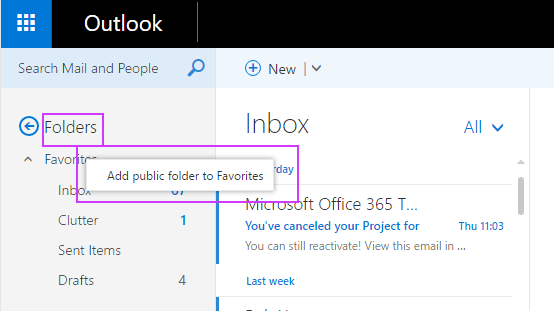
Public folders can be viewed in Office 365 Outlook by adding them to your Favorites.
- In Office 365 Outlook, right-click Favorites in the left pane.
- Select Add public folder to Favorites.
- Choose the public folder and click Add. It now appears under Favorites.
Deleting Inbox Rules in Office 365 Outlook
Remove inbox rules you no longer need, or rules you did not create.
- Click the Settings (gear) icon and select View all Outlook settings.
- Select Mail, then Rules.
- Click the Delete (trash can) icon next to the rule and confirm.
NOTE: If you see a rule you did not create, delete it and contact the IT Help Desk.
For more information, click here: Deleting Inbox Rules in Office 365 Outlook.
How to Create a Signature in Office 365 Outlook
Create a signature that you can add automatically to all outgoing messages or manually to specific ones.
- In Office 365 email, click the Settings (gear) icon and select View all Outlook settings.
- Select Mail, then Compose and reply.
- Compose your signature in the editor and choose whether to include it on new messages, replies and forwards.
- Click Save.

